
Create a Page
Plugin pages provide a graphical user interface in the Caido application. Pages are created using Vue.js components with PrimeVue and Tailwind CSS for styling.
INFO
Vue.js is the standard approach for creating plugin pages in Caido. When you initialize a plugin using pnpm create @caido-community/plugin, you can choose the Vue.js template option. This guide shows how to create pages using Vue components. For more information about using PrimeVue components and styling, see Using the Component Library.
Creating Pages and Navigating
Used to create pages in the application and navigate to them.
Adding a Page
Pages are created by setting up a Vue application and mounting it to a root element, which is then passed to sdk.navigation.addPage(). The Vue app handles the page's layout, state, and user interactions.
import { Classic } from "@caido/primevue";
import PrimeVue from "primevue/config";
import { createApp } from "vue";

import App from "./views/App.vue";

export const init = (sdk: CaidoSDK) => {
  const app = createApp(App);

  app.use(PrimeVue, {
    unstyled: true,
    pt: Classic,
  });

  const root = document.createElement("div");
  Object.assign(root.style, {
    height: "100%",
    width: "100%",
  });

  app.mount(root);

  sdk.navigation.addPage("/my-plugin-page", {
    body: root,
  });
};
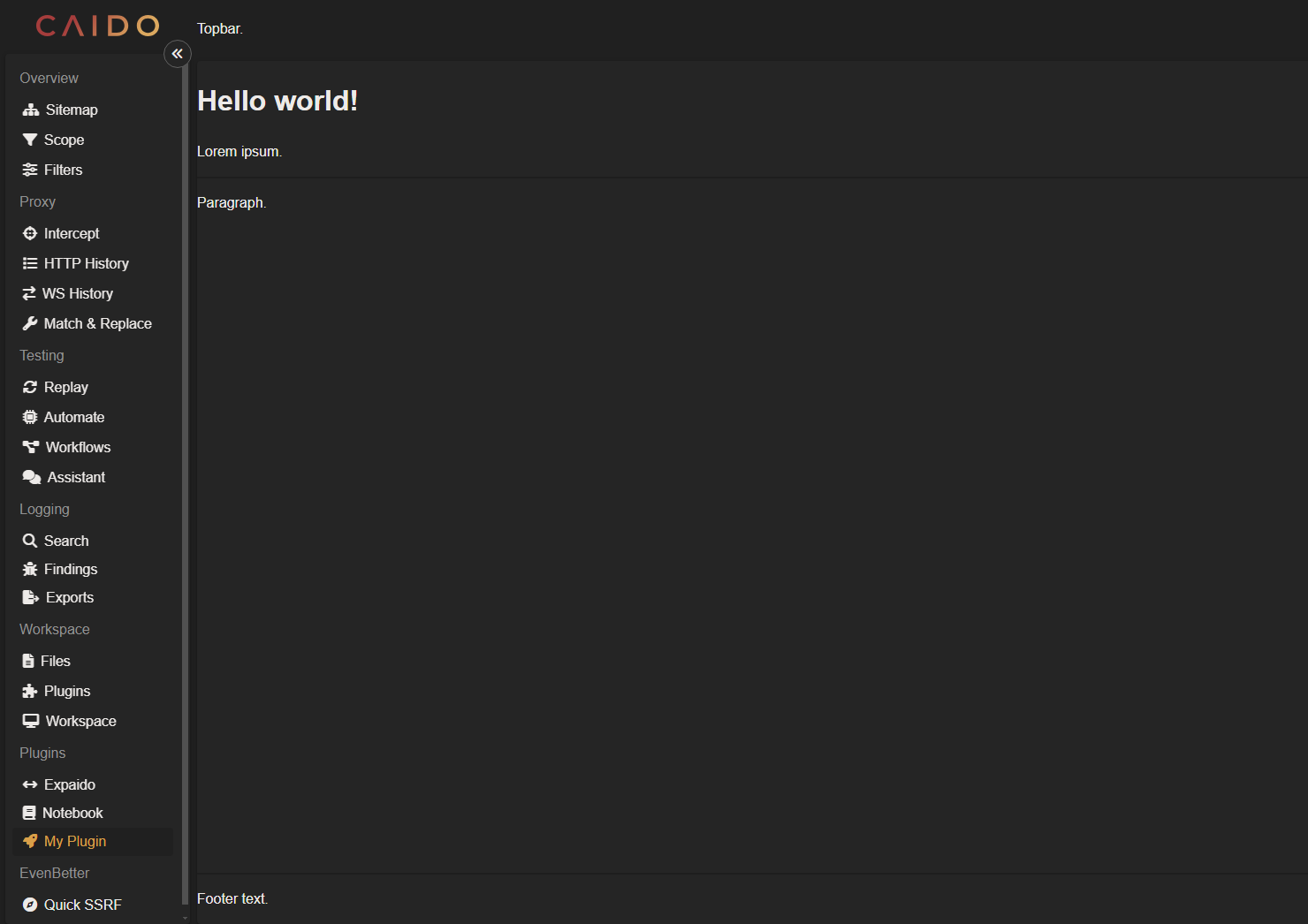
This creates a page where the contents are defined in your App.vue component. The Vue app is mounted to a root div element, which is then passed as the body property to addPage.
The topbar property is optional and appears to the right of the Caido logo in the top-left corner.
Navigating to a Page
sdk.navigation.goTo("/my-plugin-page");Adding Sidebar Items
Used to add an entry to the left-hand navigation menu in the Caido user-interface to navigate between pages.
sdk.sidebar.registerItem("My Plugin", "/my-plugin-page", {
  icon: "fas fa-rocket",
});
The icon property is optional and adds a FontAwesome icon at the leading side of the button.
INFO
- The
groupproperty is optional and dictates which category the entry will be under in the left-hand side menu. - The
isExternalproperty is optional and takes a boolean value of true if the path points to an external URL.
Building UI Components with PrimeVue
UI components are built using PrimeVue components styled with Tailwind CSS. PrimeVue provides a comprehensive set of components that match Caido's design system.
Using PrimeVue Components
Import and use PrimeVue components directly in your Vue components. For example, to create a button:
<script setup lang="ts">
import Button from "primevue/button";
</script>

<template>
  <Button label="Delete" icon="fas fa-trash-can" severity="danger" size="small" />
</template>
PrimeVue components support various props for customization:
label- The button texticon- FontAwesome icon classseverity- Button style (primary,secondary,success,info,warning,danger)size- Button size (small,medium,large)
Creating Layouts with Tailwind CSS
Use Tailwind CSS utility classes to create layouts. For example, to create a card-like layout:
<script setup lang="ts">
import { ref } from "vue";
</script>

<template>
  <div class="h-full flex flex-col">
    <div class="p-4 border-b border-gray-700">
      <h1 class="text-xl font-bold">Hello world!</h1>
      <p class="text-gray-400">Lorem ipsum.</p>
    </div>
    <div class="flex-1 p-4">
      <p>Paragraph.</p>
    </div>
    <div class="p-4 border-t border-gray-700">
      <p>Footer text.</p>
    </div>
  </div>
</template>
TIP
For a complete example of creating a page with Vue components, see the example below. This shows how to set up a Vue app in index.ts and create the page layout in App.vue:
import { Classic } from "@caido/primevue";
import PrimeVue from "primevue/config";
import { createApp } from "vue";

import type { Caido } from "@caido/sdk-frontend";
import type { API } from "starterkit-plugin-backend";

import App from "./views/App.vue";

export type CaidoSDK = Caido<API>;

export const init = (sdk: CaidoSDK) => {
  const app = createApp(App);

  app.use(PrimeVue, {
    unstyled: true,
    pt: Classic,
  });

  const root = document.createElement("div");
  Object.assign(root.style, {
    height: "100%",
    width: "100%",
  });

  app.mount(root);

  sdk.navigation.addPage("/my-plugin-page", {
    body: root,
  });

  sdk.sidebar.registerItem("My Plugin", "/my-plugin-page", {
    icon: "fas fa-rocket",
  });
};
The App.vue component defines the page layout:
<script setup lang="ts">
import Button from "primevue/button";
</script>

<template>
  <div class="h-full flex flex-col">
    <div class="p-4 border-b border-gray-700">
      <h1 class="text-xl font-bold">Hello world!</h1>
      <p class="text-gray-400">Lorem ipsum.</p>
    </div>
    <div class="flex-1 p-4">
      <p>Paragraph.</p>
    </div>
    <div class="p-4 border-t border-gray-700">
      <p>Footer text.</p>
    </div>
  </div>
</template>
The init function creates the Vue app, mounts it to a root element, and registers the page with addPage. The sidebar item is registered to make the page accessible from the navigation menu.
Getting and Monitoring Context
The Window SDK provides methods to get and monitor the global application context, including the current page context.
Getting Current Context
To get the current global context:
const context = sdk.window.getContext();The context includes:
page- The current page context (if on a specific page), which varies by page type
Monitoring Context Changes
To listen for changes to the global context:
const handle = sdk.window.onContextChange((context) => {
  if (context.page) {
    console.log("Current page:", context.page.kind);

    // Access page-specific context
    if (context.page.kind === "Intercept") {
      const interceptContext = context.page;
      console.log("Request selection:", interceptContext.requestSelection);
    }
  }
});

// Later, stop listening
handle.stop();
Example: Context-Aware Plugin
This example creates a plugin that reacts to context changes:
import type { Caido } from "@caido/sdk-frontend";

export type CaidoSDK = Caido;

export const init = (sdk: CaidoSDK) => {
  sdk.window.onContextChange((context) => {
    if (context.page) {
      switch (context.page.kind) {
        case "Intercept":
          sdk.log.info("User is on the Intercept page");
          break;
        case "HTTPHistory":
          sdk.log.info("User is on the HTTP History page");
          break;
        case "Sitemap":
          sdk.log.info("User is on the Sitemap page");
          break;
        default:
          sdk.log.info(`User is on the ${context.page.kind} page`);
      }
    } else {
      sdk.log.info("User is not on a specific page");
    }
  });
};
Page Context Types
Caido provides different page context types that are available depending on which page the user is viewing. Each context type offers different properties and capabilities. When creating pages for specific sections of Caido, understanding these context types allows you to build context-aware pages that react to user selections and application state.
Available Page Context Types
The following page context types are available in Caido:
- Assistant - Context when viewing the AI Assistant page
- Backups - Context when viewing the Backups page
- Certificate - Context when viewing the Certificate page
- Exports - Context when viewing the Exports page
- Intercept - Context when viewing the Intercept page with access to request and response selections
- WebSocket - Context when viewing the WebSocket page
Assistant Page Context
The Assistant page context is available when the user is on the AI Assistant page. This context has minimal state, primarily serving as an indicator of the current page.
What this context provides:
- A signal that the user is on the Assistant page
Accessing Assistant context:
sdk.window.onContextChange((context) => {
  if (context.page?.kind === "Assistant") {
    sdk.log.info("User navigated to Assistant page");
  }
});
Example: Page for Assistant section:
import { Classic } from "@caido/primevue";
import PrimeVue from "primevue/config";
import { createApp } from "vue";

import type { Caido } from "@caido/sdk-frontend";
import App from "./views/AssistantApp.vue";

export type CaidoSDK = Caido;

export const init = (sdk: CaidoSDK) => {
  const app = createApp(App);

  app.use(PrimeVue, {
    unstyled: true,
    pt: Classic,
  });

  const root = document.createElement("div");
  Object.assign(root.style, {
    height: "100%",
    width: "100%",
  });

  app.mount(root);

  sdk.navigation.addPage("/ai-assistant-tools", {
    body: root,
  });

  // React to Assistant page context
  sdk.window.onContextChange((context) => {
    if (context.page?.kind === "Assistant") {
      sdk.log.info("Assistant tools page is now relevant");
    }
  });
};
Backups Page Context
The Backups page context is available when the user is on the Backups page. This context provides access to backup-related state and operations.
What this context provides:
- A signal that the user is on the Backups page
Accessing Backups context:
sdk.window.onContextChange((context) => {
  if (context.page?.kind === "Backups") {
    sdk.log.info("User is on the Backups page");
  }
});
Example: Page for Backups management:
import { Classic } from "@caido/primevue";
import PrimeVue from "primevue/config";
import { createApp } from "vue";

import type { Caido } from "@caido/sdk-frontend";
import App from "./views/BackupsApp.vue";

export type CaidoSDK = Caido;

export const init = (sdk: CaidoSDK) => {
  const app = createApp(App);

  app.use(PrimeVue, {
    unstyled: true,
    pt: Classic,
  });

  const root = document.createElement("div");
  Object.assign(root.style, {
    height: "100%",
    width: "100%",
  });

  app.mount(root);

  sdk.navigation.addPage("/backup-analytics", {
    body: root,
  });

  // Monitor Backups page changes
  sdk.window.onContextChange((context) => {
    if (context.page?.kind === "Backups") {
      sdk.log.info("Now on Backups page");
    }
  });
};
Certificate Page Context
The Certificate page context is available when the user is on the Certificate management page. This context allows your plugin to respond to certificate-related operations.
What this context provides:
- A signal that the user is on the Certificate page
Accessing Certificate context:
sdk.window.onContextChange((context) => {
  if (context.page?.kind === "Certificate") {
    sdk.log.info("User is on the Certificate page");
  }
});
Example: Certificate management plugin:
import { Classic } from "@caido/primevue";
import PrimeVue from "primevue/config";
import { createApp } from "vue";

import type { Caido } from "@caido/sdk-frontend";
import App from "./views/CertificateApp.vue";

export type CaidoSDK = Caido;

export const init = (sdk: CaidoSDK) => {
  const app = createApp(App);

  app.use(PrimeVue, {
    unstyled: true,
    pt: Classic,
  });

  const root = document.createElement("div");
  Object.assign(root.style, {
    height: "100%",
    width: "100%",
  });

  app.mount(root);

  sdk.navigation.addPage("/certificate-tools", {
    body: root,
  });

  // React to Certificate page context
  sdk.window.onContextChange((context) => {
    if (context.page?.kind === "Certificate") {
      sdk.log.info("Certificate management tools available");
    }
  });
};
Exports Page Context
The Exports page context is available when the user is on the Exports page. This context allows you to build tools that work with exported data.
What this context provides:
- A signal that the user is on the Exports page
Accessing Exports context:
sdk.window.onContextChange((context) => {
  if (context.page?.kind === "Exports") {
    sdk.log.info("User is on the Exports page");
  }
});
Example: Export analytics page:
import { Classic } from "@caido/primevue";
import PrimeVue from "primevue/config";
import { createApp } from "vue";

import type { Caido } from "@caido/sdk-frontend";
import App from "./views/ExportAnalyticsApp.vue";

export type CaidoSDK = Caido;

export const init = (sdk: CaidoSDK) => {
  const app = createApp(App);

  app.use(PrimeVue, {
    unstyled: true,
    pt: Classic,
  });

  const root = document.createElement("div");
  Object.assign(root.style, {
    height: "100%",
    width: "100%",
  });

  app.mount(root);

  sdk.navigation.addPage("/export-analytics", {
    body: root,
  });

  // React to Exports page context
  sdk.window.onContextChange((context) => {
    if (context.page?.kind === "Exports") {
      sdk.log.info("Export analytics tools available");
    }
  });
};
Intercept Page Context
The Intercept page context is the most feature-rich context. It provides access to request, response, and WebSocket message selections, allowing you to build tools that work directly with intercepted traffic.
What this context provides:
requestSelection- A selection object tracking the currently selected intercepted requestresponseSelection- A selection object tracking the currently selected intercepted responsewebsocketSelection- A selection object tracking the currently selected WebSocket message
Accessing Intercept context:
sdk.window.onContextChange((context) => {
  if (context.page?.kind === "Intercept") {
    const intercept = context.page;

    // Check what is currently selected
    if (intercept.requestSelection.isSelected) {
      const selectedId = intercept.requestSelection.value;
      sdk.log.info(`Selected request: ${selectedId}`);
    }

    if (intercept.responseSelection.isSelected) {
      const selectedId = intercept.responseSelection.value;
      sdk.log.info(`Selected response: ${selectedId}`);
    }

    if (intercept.websocketSelection.isSelected) {
      const selectedId = intercept.websocketSelection.value;
      sdk.log.info(`Selected WebSocket message: ${selectedId}`);
    }
  }
});
Example: Request analyzer plugin:
This example creates a page that analyzes the currently selected intercepted request:
import { Classic } from "@caido/primevue";
import PrimeVue from "primevue/config";
import { createApp } from "vue";
import { ref } from "vue";

import type { Caido } from "@caido/sdk-frontend";
import App from "./views/InterceptAnalyzerApp.vue";

export type CaidoSDK = Caido;

export const init = (sdk: CaidoSDK) => {
  const selectedRequest = ref<string | null>(null);
  const selectedResponse = ref<string | null>(null);

  const app = createApp(App, {
    selectedRequest,
    selectedResponse,
  });

  app.use(PrimeVue, {
    unstyled: true,
    pt: Classic,
  });

  const root = document.createElement("div");
  Object.assign(root.style, {
    height: "100%",
    width: "100%",
  });

  app.mount(root);

  sdk.navigation.addPage("/intercept-analyzer", {
    body: root,
  });

  // Monitor Intercept page selections
  sdk.window.onContextChange((context) => {
    if (context.page?.kind === "Intercept") {
      const intercept = context.page;

      // Update selected request
      if (intercept.requestSelection.isSelected) {
        selectedRequest.value = intercept.requestSelection.value;
      } else {
        selectedRequest.value = null;
      }

      // Update selected response
      if (intercept.responseSelection.isSelected) {
        selectedResponse.value = intercept.responseSelection.value;
      } else {
        selectedResponse.value = null;
      }
    }
  });
};
And in your InterceptAnalyzerApp.vue component:
<script setup lang="ts">
import { ref, computed } from "vue";

const props = defineProps<{
  selectedRequest: string | null;
  selectedResponse: string | null;
}>();

const noSelection = computed(() => !props.selectedRequest && !props.selectedResponse);
</script>

<template>
  <div class="h-full flex flex-col p-4">
    <div v-if="noSelection" class="text-gray-400">
      <p>Select a request or response in the Intercept tab to view analysis</p>
    </div>
    <div v-else>
      <div v-if="selectedRequest" class="mb-4 p-3 bg-blue-900/20 border border-blue-700 rounded">
        <h3 class="font-bold text-blue-400">Selected Request</h3>
        <p class="text-sm text-gray-300">{{ selectedRequest }}</p>
      </div>
      <div v-if="selectedResponse" class="p-3 bg-green-900/20 border border-green-700 rounded">
        <h3 class="font-bold text-green-400">Selected Response</h3>
        <p class="text-sm text-gray-300">{{ selectedResponse }}</p>
      </div>
    </div>
  </div>
</template>
WebSocket Page Context
The WebSocket page context is available when the user is on the WebSocket page. This context allows you to build tools that interact with WebSocket connections.
What this context provides:
- A signal that the user is on the WebSocket page
Accessing WebSocket context:
sdk.window.onContextChange((context) => {
  if (context.page?.kind === "Websocket") {
    sdk.log.info("User is on the WebSocket page");
  }
});
Example: WebSocket message analyzer:
import { Classic } from "@caido/primevue";
import PrimeVue from "primevue/config";
import { createApp } from "vue";

import type { Caido } from "@caido/sdk-frontend";
import App from "./views/WebSocketAnalyzerApp.vue";

export type CaidoSDK = Caido;

export const init = (sdk: CaidoSDK) => {
  const app = createApp(App);

  app.use(PrimeVue, {
    unstyled: true,
    pt: Classic,
  });

  const root = document.createElement("div");
  Object.assign(root.style, {
    height: "100%",
    width: "100%",
  });

  app.mount(root);

  sdk.navigation.addPage("/websocket-analyzer", {
    body: root,
  });

  // React to WebSocket page context
  sdk.window.onContextChange((context) => {
    if (context.page?.kind === "Websocket") {
      sdk.log.info("WebSocket analyzer tools available");
    }
  });
};
Working with Page Context and State
When building context-aware pages, consider these best practices:
Check context availability - Always verify that
context.pageexists before accessing its properties, as the user may be on a plugin page that does not provide page context.Handle selection changes - For pages with selections (like Intercept), use the
isSelectedproperty to determine if a selection is active before accessing thevalueproperty.Update UI reactively - Use Vue's reactivity system (refs, computed properties) to update your UI when context changes.
Provide fallback UI - When no context is available or no selection is made, display helpful UI that guides the user about how to interact with your page.
Clean up listeners - When your plugin or page is destroyed, call the
stop()method on listener handles to prevent memory leaks:
const handle = sdk.window.onContextChange((context) => {
  // Handle context changes
});

// When the page is destroyed
handle.stop();
Interacting with Windows and Editors
Used to interact with text within the application environment, allowing text selection, replacement, read permission designations, focusing and editor related messaging.
Interacting with Text Within Editors
let currentSelection = sdk.window.getActiveEditor()?.getSelectedText();This takes the value of the current highlight-selected text and stores it in a variable.
sdk.window
  .getActiveEditor()
  ?.replaceSelectedText("Text that will replace the selection.");
This takes the value of the current highlight-selected text and replaces it with the arguement value.
Displaying a Toast Message
sdk.window.showToast("Message to display.", {
  variant: "info",
  duration: 3000,
});
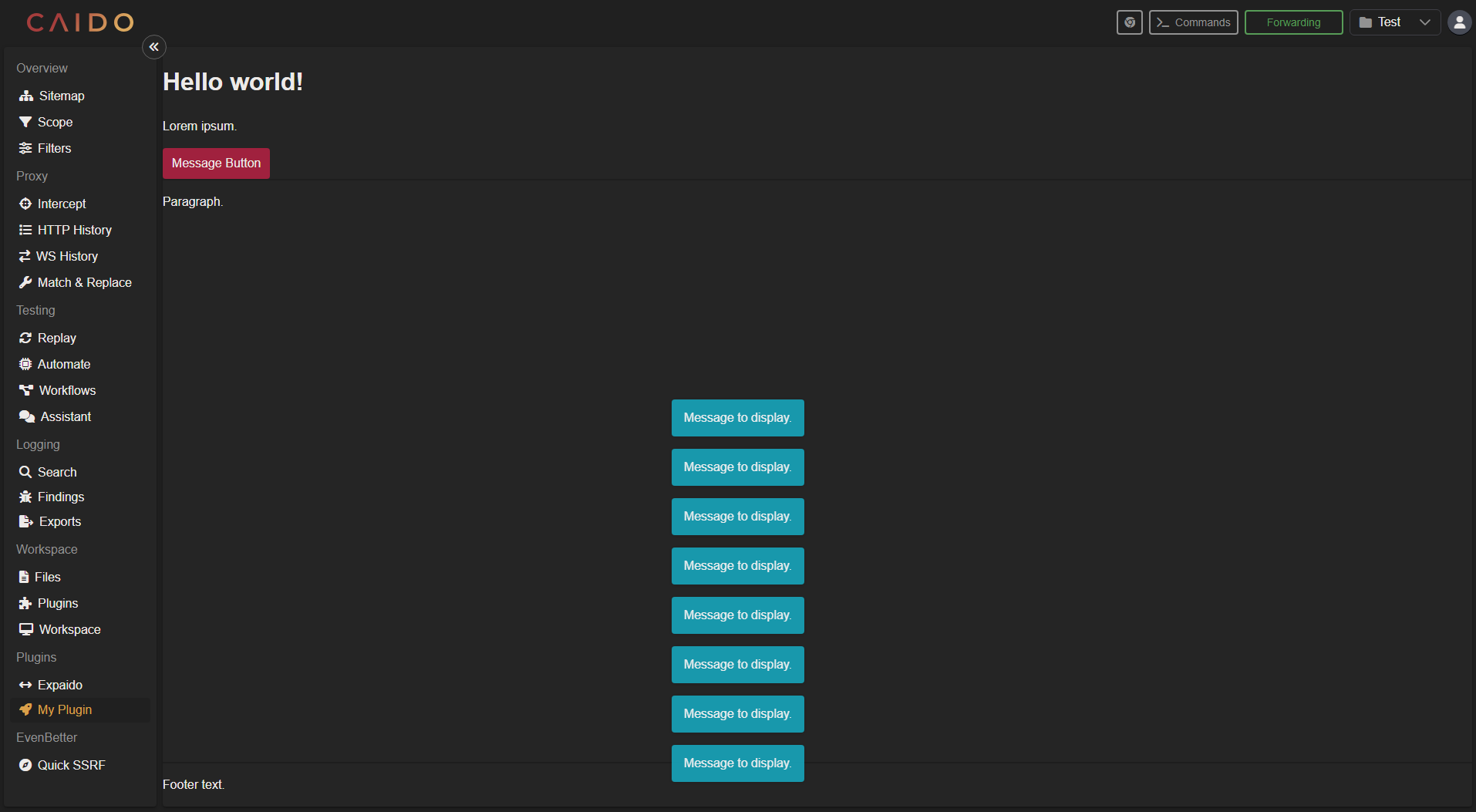
This displays a banner containing the specified message.
All message properties are optional and include:
variant- Specifies the message type and can have a value of"success","error","warning"or"info".duration- Specifies the amount of time a message will be displayed in milliseconds.
Examples
Basic Page with Button
This example creates a simple page with a button that displays a toast message when clicked.
<script setup lang="ts">
import Button from "primevue/button";
import { inject } from "vue";

const sdk = inject<CaidoSDK>("sdk");

const handleClick = () => {
  sdk?.window.showToast("Message to display.", {
    variant: "info",
    duration: 3000,
  });
};
</script>

<template>
  <div class="h-full flex flex-col p-4">
    <div class="mb-4">
      <h1 class="text-xl font-bold mb-2">Hello world!</h1>
      <p class="text-gray-400">Lorem ipsum.</p>
    </div>
    <div class="flex-1">
      <p>Paragraph.</p>
    </div>
    <div class="mt-4">
      <Button label="Message Button" @click="handleClick" />
    </div>
  </div>
</template>
The corresponding index.ts file:
import { Classic } from "@caido/primevue";
import PrimeVue from "primevue/config";
import { createApp } from "vue";

import type { Caido } from "@caido/sdk-frontend";
import type { API } from "starterkit-plugin-backend";

import App from "./views/App.vue";

export type CaidoSDK = Caido<API>;

export const init = (sdk: CaidoSDK) => {
  const app = createApp(App);

  app.provide("sdk", sdk);

  app.use(PrimeVue, {
    unstyled: true,
    pt: Classic,
  });

  const root = document.createElement("div");
  Object.assign(root.style, {
    height: "100%",
    width: "100%",
  });

  app.mount(root);

  sdk.navigation.addPage("/my-plugin-page", {
    body: root,
  });

  sdk.sidebar.registerItem("My Plugin", "/my-plugin-page", {
    icon: "fas fa-rocket",
  });
};
What this context provides:
- A signal that the user is on the WebSocket page
Accessing WebSocket context:
sdk.window.onContextChange((context) => {
  if (context.page?.kind === "Websocket") {
    sdk.log.info("User is on the WebSocket page");
  }
});
Example: WebSocket message analyzer:
import { Classic } from "@caido/primevue";
import PrimeVue from "primevue/config";
import { createApp } from "vue";

import type { Caido } from "@caido/sdk-frontend";
import App from "./views/WebSocketAnalyzerApp.vue";

export type CaidoSDK = Caido;

export const init = (sdk: CaidoSDK) => {
  const app = createApp(App);

  app.use(PrimeVue, {
    unstyled: true,
    pt: Classic,
  });

  const root = document.createElement("div");
  Object.assign(root.style, {
    height: "100%",
    width: "100%",
  });

  app.mount(root);

  sdk.navigation.addPage("/websocket-analyzer", {
    body: root,
  });

  // React to WebSocket page context
  sdk.window.onContextChange((context) => {
    if (context.page?.kind === "Websocket") {
      sdk.log.info("WebSocket analyzer tools available");
    }
  });
};